Recently, I was using TranslatePress to add multi-language support to my website, and after I added English, I suddenly found that a lot of Redirect errors appeared in GSC, as shown in the following figure
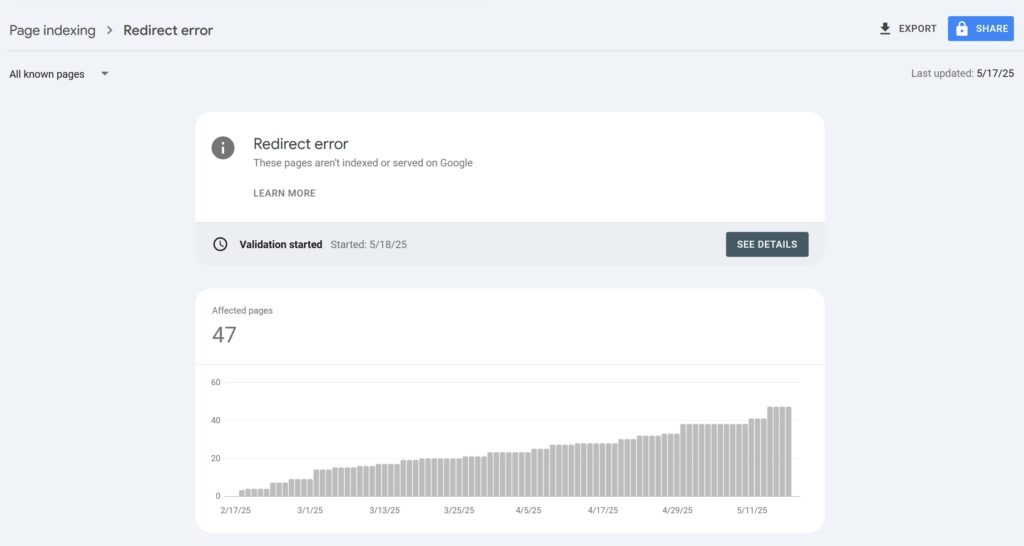
Here's a look at the errors all appearing on the English page
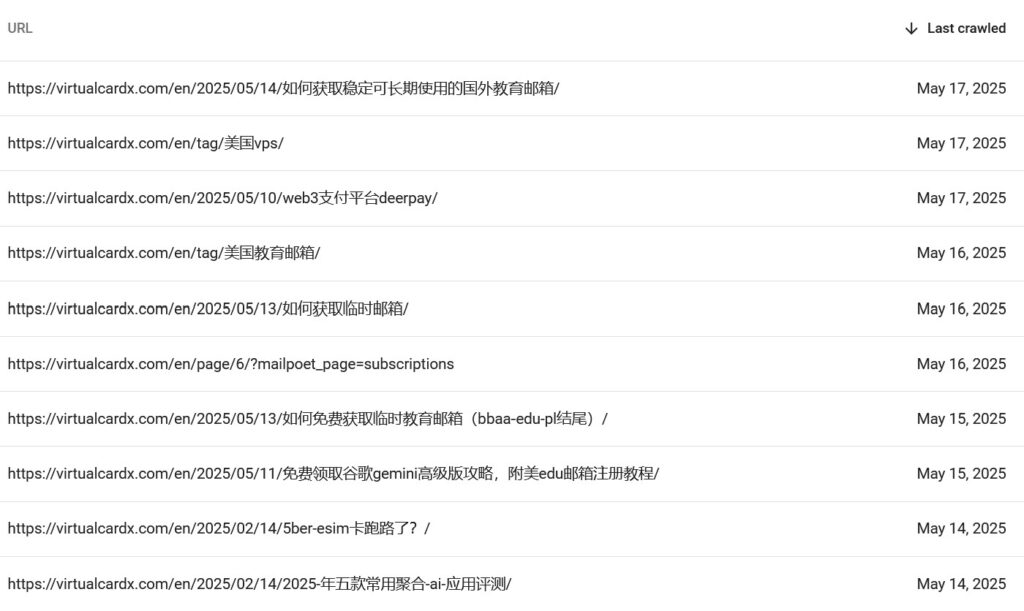
Initially, the error is caused by the multi-language plugin
Testing with curl

The server reports a 301 code, meaning redirection.
To deal with this, I rummaged around in the TranslatePress backend and finally found the SEO related settings
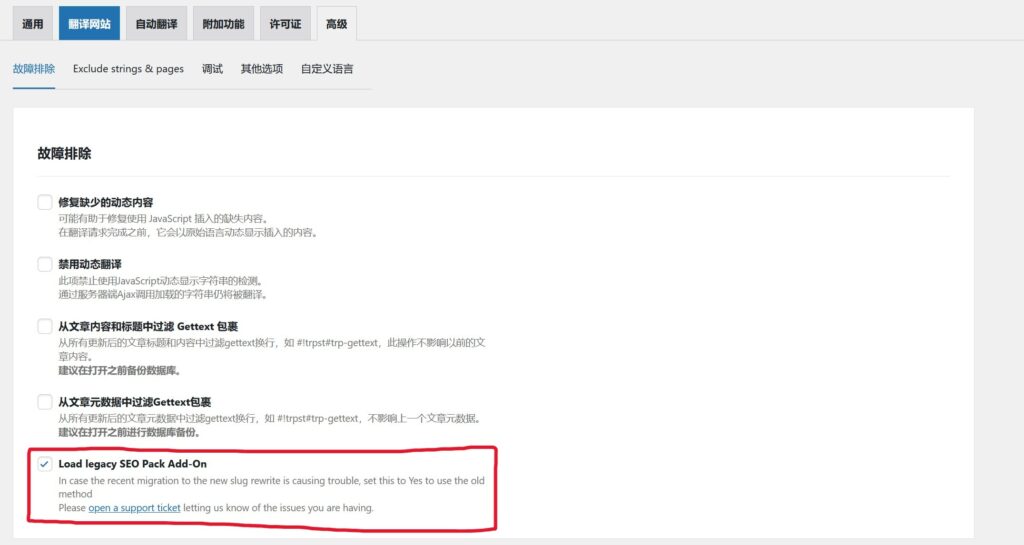
Here's the last one.
Load legacy SEO Pack Add-On
In case the recent migration to the new slug rewrite is causing trouble, set this to Yes to use the old method
after checking
Testing with curl again

bingo, problem solved!
Re-submit the verification in the GSC backend
How to Resolve Redirect Errors Caused by TranslatePress in Google Search Console: Additional Notes and Usage Recommendations
This type of resource-based content is worth saving, but it also needs to be reviewed periodically. Tools, platforms, links, and rules are subject to change—especially free resources, temporary services, and third-party platforms, which often become unavailable, undergo redesigns, or have regional access restrictions.
Recommendations Before Use
- First, check whether the link is still accessible.
- Be sure to consult the official documentation first; don't rely solely on third-party tutorials.
- Do not submit sensitive information related to your account, email address, payment details, or personal data.
- Save alternative solutions as well to avoid a single point of failure.
If you plan to use the tool for long-term business purposes, we recommend choosing one with a track record of stable maintenance, a clear privacy policy, and accessible support channels. Free plans are suitable for short-term, temporary needs, but you should not store critical data on an unreliable platform for an extended period.
Related Content
Recommendations for Updates and Reviews
We recommend reviewing this content periodically. Tool access points, platform rules, browser menus, account risk controls, and terms of service are all subject to change. When reviewing, focus on three key points: whether the original method is still viable, whether a simpler new solution has emerged, and whether any new risk warnings need to be added.
If this is your first time performing this operation, we recommend testing it first on a test account or in a low-risk environment before migrating to the production environment. That way, even if the steps aren’t applicable, they won’t affect your main account, main site, or business data.
General Troubleshooting Steps for Technical Issues
- First, confirm whether the issue can be reliably reproduced; do not draw conclusions based on a single instance of the problem.
- Record the current version, path, account permissions, and complete error details.
- Change only one variable at a time, then immediately verify the results to avoid mixing multiple changes together.
- If a production site is involved, back it up before proceeding. This is especially true for issues related to WordPress, Nginx, certificates, and caching.
Many problems that seem complicated are often ultimately caused by caching, permissions, paths, or version differences. Troubleshooting layer by layer is more reliable than repeatedly copying commands.











 English
  Chinese