 VirtualCardx
Fix VirtualBox Slowdowns on P-Core/E-Core CPUs
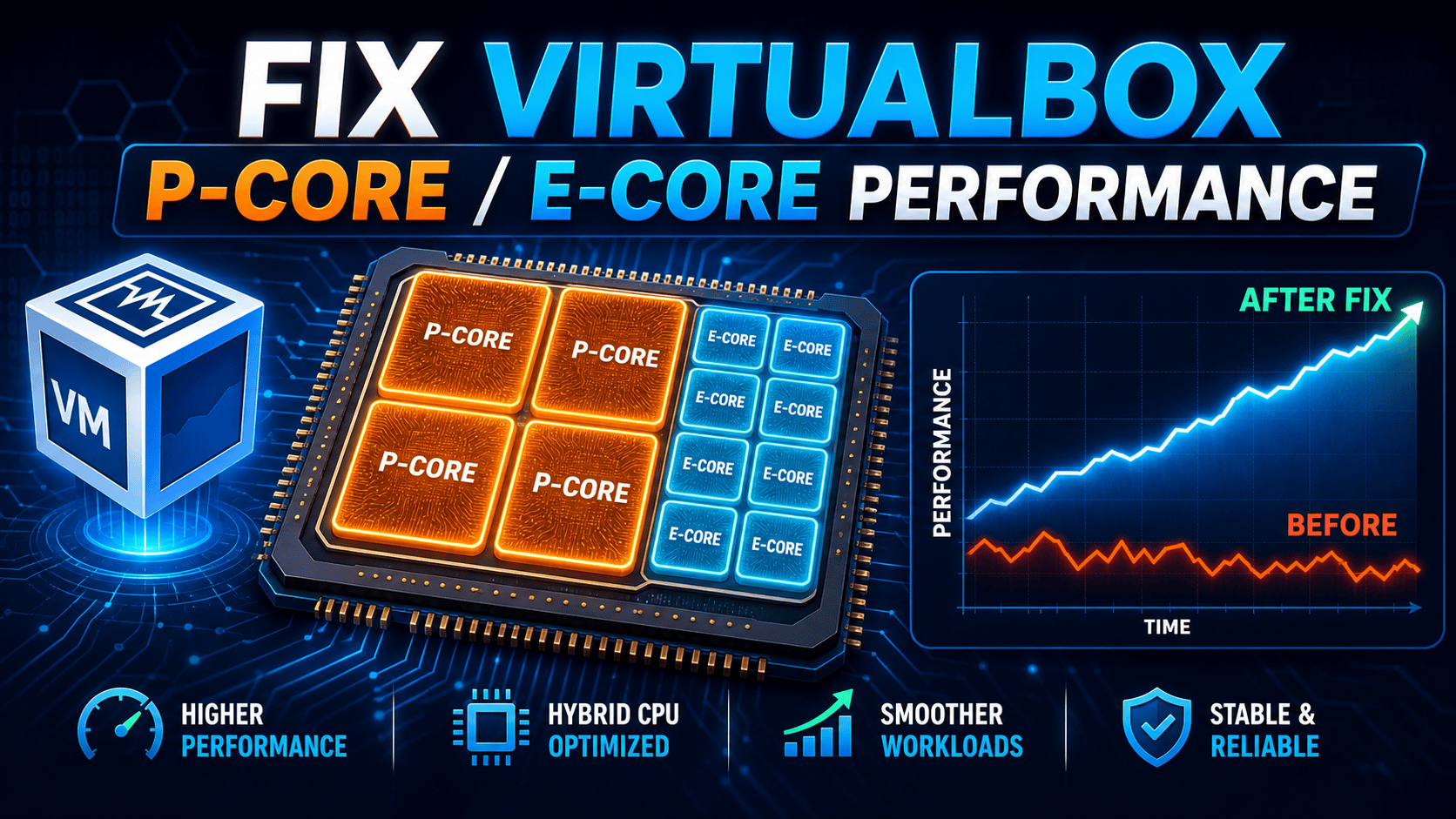
Fix VirtualBox Performance Drops Caused by Hybrid Cores
Last week, I built a new 13600K machine to run test environments for several cross-border payment gateways. I expected migrating the virtual machines from my old E5 server to be a major efficiency boost - but when I ran Linux-based automation scripts, the lag was unbearable. Even after assigning 8 cores to the VM, compilation was slower than on my old laptop from a few years ago. Opening Task Manager showed total CPU usage under 30%, yet the mouse inside the VM constantly left trails.
After half a day of digging through documentation, I finally understood: this wasn't a hardware performance problem at all. It was Intel 12th-gen and newer hybrid big.LITTLE (P-core/E-core) architecture tripping over VirtualBox's default scheduling.
Why Do Hybrid Cores Degrade VirtualBox Performance?
Modern Intel Core processors use a hybrid architecture - the P-cores and E-cores we often hear about. P-cores handle heavy workloads with high clock speeds and Hyper-Threading support; E-cores handle background tasks with lower clocks and better efficiency.
The problem lies in how Windows' low-level thread scheduler works with VirtualBox. When you start a VM in VirtualBox and assign multiple vCPUs, VirtualBox maps those virtual cores to threads on the host. But Windows' task scheduler often misjudges and dumps the VM's compute-heavy tasks onto E-cores, or migrates threads back and forth between P-cores and E-cores.
This creates an absurd situation: your VM has powerful P-cores available but gets stuck grinding away on low-clock E-cores, losing up to 50%+ performance. At the same time, frequent context switches between cores add massive overhead, showing up as system freezes and mouse stutter.
Real Benchmark Comparison: Before vs. After the Fix
To prove this wasn't superstition, I ran a pure CPU benchmark with sysbench on an Ubuntu 22.04 VM. Test environment: i5-13600KF (6 P-cores, 8 E-cores), with 4 cores assigned to the VM.
- Default state (cores scrambled): sysbench single-thread score was only ~850, with average event latency up to 11.5ms. Host Task Manager showed all load piled on E-cores.
- After the fix (forced to P-cores): sysbench single-thread score jumped above 2100, average latency dropped to 4.2ms - a performance gain of over 140%.
Three Steps to Fix VirtualBox Hybrid-Core Scheduling
Once the root cause is identified, the fix is actually simple. The core idea is to force VirtualBox to use only the physical P-cores, completely isolating the E-cores. Here are my exact steps.
Step 1: Confirm Your CPU Core Topology
First, we need to figure out which cores are P-cores and which are E-cores. On Windows, open Command Prompt (CMD) and run:
wmic cpu get NumberOfCores,NumberOfLogicalProcessors
Or better, use Microsoft's official System Informer (formerly Process Hacker). On my 13600K, P-cores usually come first in Task Manager's "Logical processors" list (e.g., 0-11 are P-cores, 12-19 are E-cores). Note these core numbers down - you'll need them later.
Step 2: Temporary Affinity Binding via Task Manager
If you only need a temporary fix, the fastest way is to manually bind cores via Task Manager:
- Start your VirtualBox VM.
- Press
Ctrl + Shift + Escto open Task Manager and switch to the "Details" tab. - Find the
VirtualBoxVM.exeprocess, right-click it, and select "Set affinity". - In the processor affinity dialog, uncheck all the E-cores, keep only the P-cores checked, then click OK.
After this step, you'll immediately feel the mouse inside the VM become much smoother.
Step 3: Permanent Isolation with a Third-Party Tool
Manually ticking boxes in Task Manager every time obviously doesn't fit our efficiency-driven mindset. I recommend Process Lasso, a free and highly flexible process management tool, for a permanent setup.
- Download and install Process Lasso.
- Run your VM, then find the
VirtualBoxVM.exeprocess in Process Lasso's main window. - Right-click the process, choose
CPU Affinity->Always. - In the core list, check only your physical P-cores and uncheck all E-cores.
This way, no matter when you start VirtualBox, it will automatically avoid E-cores and run at full power on P-cores.
Bonus Optimization: Tweak VirtualBox's Internal Settings
Besides restricting cores at the host level, I also recommend a small tweak in VirtualBox's global settings. Go to VirtualBox File -> Preferences -> System and make sure "Enable Nested Paging" is checked. Also, in the Processor tab, set the execution cap to 100% so the VM squeezes as much performance as possible from its assigned P-cores.
Summary and Pitfall Advice
For those of us who regularly run multiple VMs for fingerprint browsers, cross-border store management environments, or payment API testing, Windows' native scheduler is still not very smart when it comes to heavy virtualization workloads. Forcing VirtualBox to bind to P-cores is currently the most effective free fix for lag and abnormal performance.
One final reminder: if your workflow involves running VMs for testing while gaming on the host at the same time, handing all P-cores to VirtualBox may cause frame drops in games. In that case, I usually keep 2 P-cores for daily host use and entertainment, and assign the rest to the VM. Sensible resource planning is what truly unlocks the full potential of a hybrid-core processor. For more hardcore content on virtual environments and cross-border tech pitfalls, keep following virtualcardx.com for future updates.