 VirtualCardx
Fix GSC Redirect Errors Caused by TranslatePress
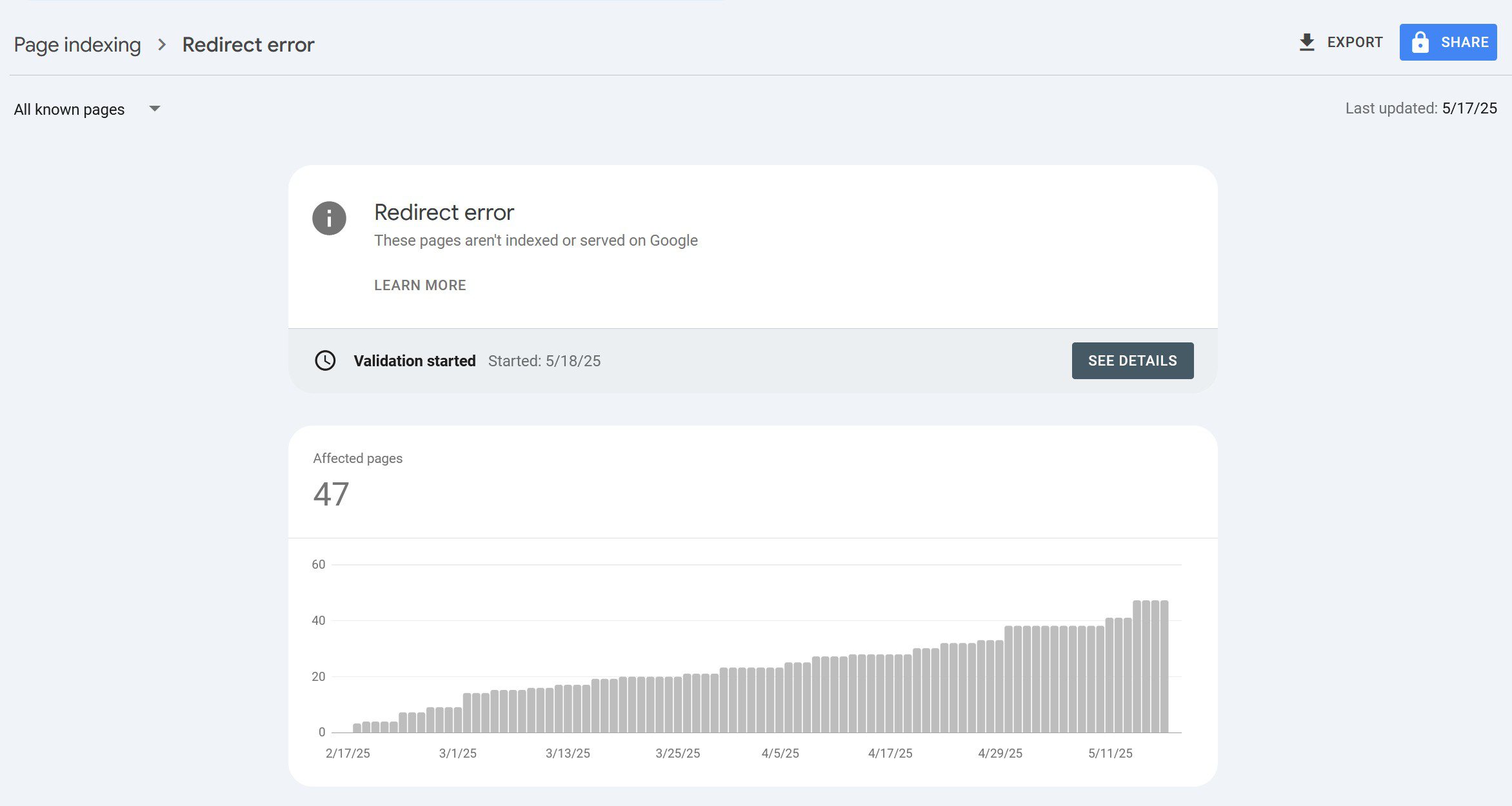
Recently, while using TranslatePress to add multilingual support to my website, I suddenly found a flood of Redirect errors in GSC after adding English, as shown below.
Looking at this, all the errors appear on the English pages.
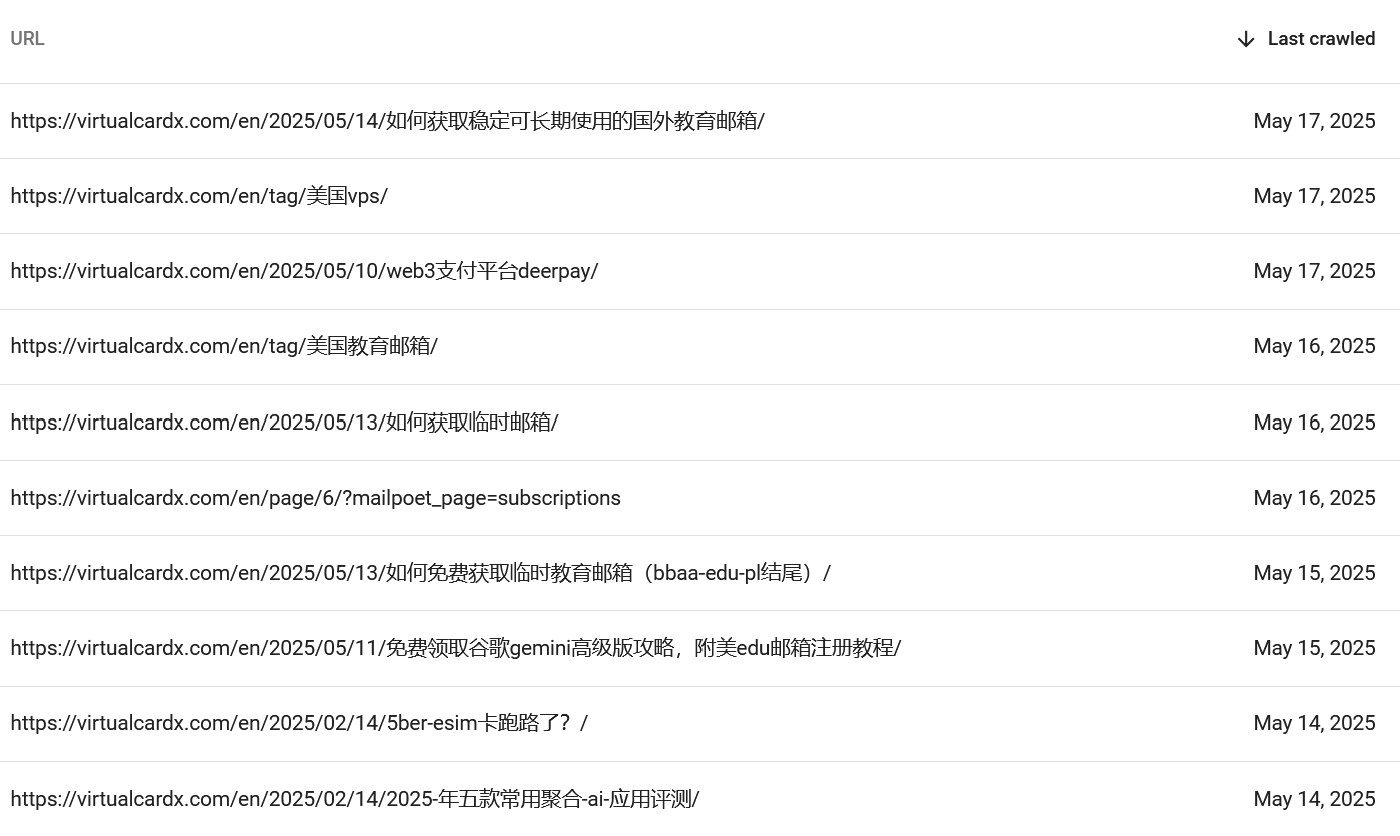
My initial assessment: the errors are caused by the multilingual plugin.
Test with curl:

The server returns a 301 code, meaning a redirect.
To handle this, I dug through the TranslatePress admin and finally found the SEO-related setting.
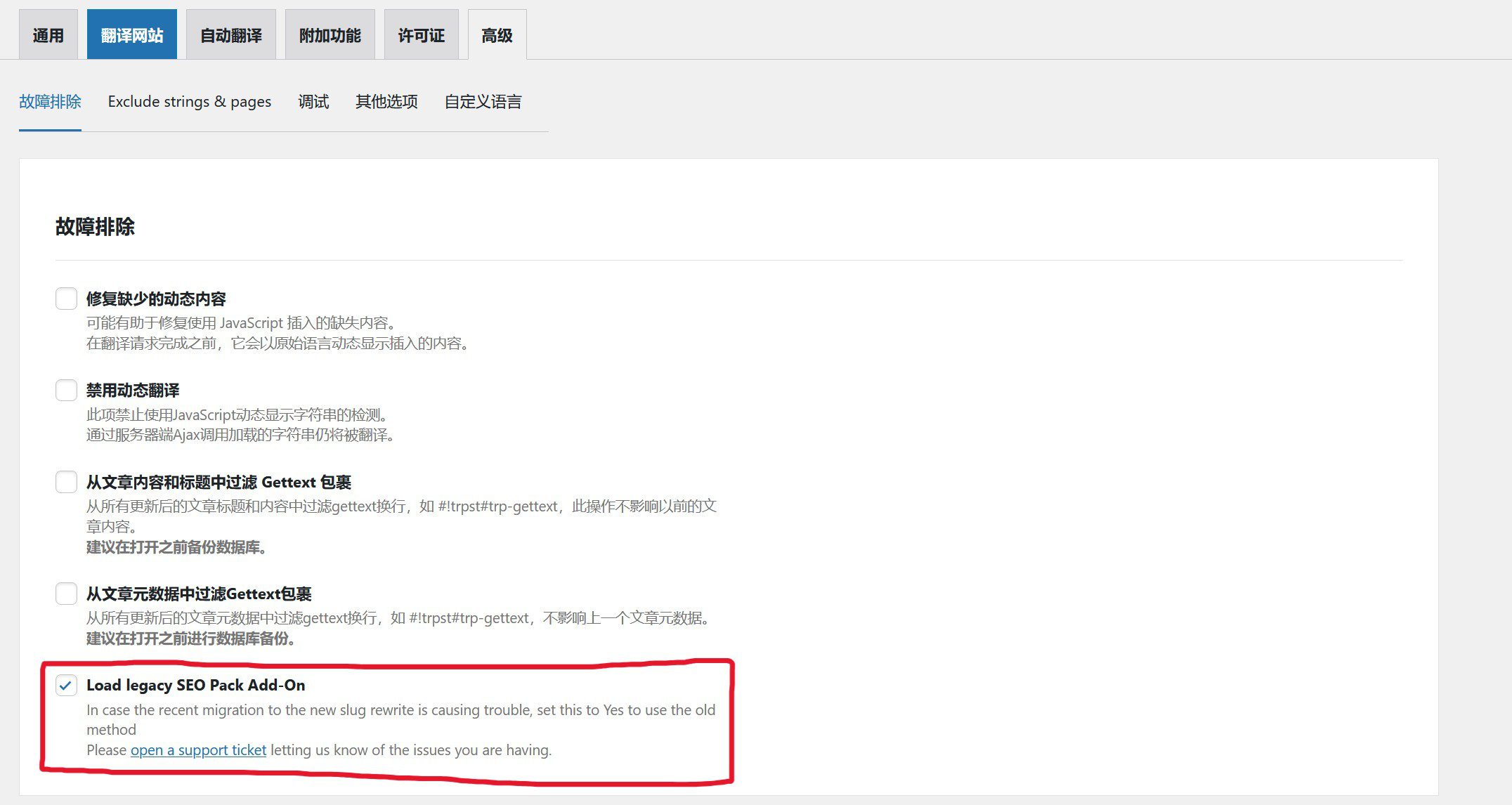
It's the last item here:
Load legacy SEO Pack Add-On
In case the recent migration to the new slug rewrite is causing trouble, set this to Yes to use the old method
After checking it:
Test with curl again:

Bingo, problem solved.
Submit the validation again in GSC.
Fix Redirect Errors in Google Search Console Caused by TranslatePress: Supplementary Notes and Usage Tips
Resource-type content like this is worth bookmarking, but it also needs periodic rechecking. Tools, platforms, links and rules all change — especially free resources, temporary services and third-party platforms, which frequently go dead, get redesigned or become region-restricted.
Before using
- First confirm the links still work.
- Prefer official documentation over second-hand tutorials.
- Don't submit sensitive information when accounts, emails, payments or private data are involved.
- Save alternative options too, so a single point of failure doesn't leave you stranded.
If you're using something for long-term business, choose tools with a stable maintenance record, a clear privacy policy and reachable support channels. Free options are fine for short-term needs, but don't leave critical data on uncertain platforms long-term.
Related content
Review and recheck suggestions
This content should be rechecked periodically. Tool entry points, platform rules, browser menus, account risk controls and terms of service can all change. When rechecking, focus on three things: whether the original method still works, whether a simpler new solution has appeared, and whether new risk warnings need to be added.
If this is your first time, verify everything in a test account or low-risk environment before moving to production. That way, even if a step doesn't apply, your main account, main site and business data stay unaffected.
Generic troubleshooting order for technical issues
- First confirm the problem can be reproduced consistently; don't draw conclusions from a single anomaly.
- Record the current version, paths, account permissions and the full error message.
- Change only one variable, then verify immediately, so multiple changes don't get mixed together.
- If a production site is involved, back up before operating. This is especially true for WordPress, Nginx, certificate and caching issues.
Many problems that look complicated turn out to be caused by caching, permissions, paths or version differences. Layer-by-layer debugging beats blindly re-running commands.
2026 verification note
Recheck this procedure against the linked primary documentation and the live configuration before applying it. Product limits, plugin settings, dashboard labels, server paths, and commands change over time. Take a backup, test in staging where possible, validate configuration syntax before reload/restart, and verify the resulting HTTP status, canonical URL, logs, and user-visible behavior. Do not treat a successful command or a third-party tool score as proof that the underlying SEO, security, or availability issue is resolved.
Use least-privilege credentials, keep secrets out of repositories and logs, and preserve a rollback plan. For search changes, observe Search Console data over a normal reporting period rather than repeatedly requesting indexing.