 VirtualCardx
How to Fix DNS Errors in Edge Browser on Windows 11
When you visit websites with the Edge browser on Windows 11 and run into the following DNS error messages, use the troubleshooting steps in this article:
- dns_probe_finished_nxdomain: Domain resolution failed — the server could not find the IP address for the requested domain.
- dns_probe_finished_no_internet: The browser cannot reach the internet through the DNS server.
- dns_probe_started: A DNS query was started but did not complete or ran into an error.
Cause Analysis
Newer Edge and Chrome browsers enable the "Secure DNS" feature by default (DNS queries over an encrypted HTTPS channel), but some domestic ISPs and routers do not fully support this protocol yet, which can lead to the following problems:
- The router's built-in DNS server does not support encrypted transport and blocks resolution requests.
- ISP network policies restrict or intercept DNS traffic wrapped in HTTPS.
- Public DNS service nodes are unstable or regionally blocked.
Solutions
Here are three targeted solutions; choose based on your situation:
Option 1: Switch to another browser
Temporarily stop using Edge/Chrome and switch to Firefox, Edge Dev, or a domestic browser (such as 360 Secure Browser or QQ Browser). These browsers do not force Secure DNS by default, which avoids the resolution conflict.
Option 2: Change the router DNS settings (recommended for home/office networks)
Configure public DNS in your router's admin panel to override the device defaults. Steps:
- Log in to the router admin page: Enter the router IP in the browser address bar (commonly
192.168.1.1or192.168.0.1), then enter the username and password (the default is usuallyadmin; check the label on the back of the router). - Open DNS settings: Find the "DNS server" setting under "Network Settings," "Advanced Settings," or "DHCP Server."
- Enter Alibaba Public DNS:
- Preferred DNS:
223.5.5.5 - Alternate DNS:
223.6.6.6 - Advantage: Alibaba Cloud DNS is fast and stable, and works well with domestic network environments.
- Preferred DNS:
- Save and restart the router: After configuring, restart the router to apply the changes.
Option 3: Customize Secure DNS in Edge/Chrome (for advanced users)
If you would like to keep the browser's Secure DNS feature, you can manually specify a compatible DNS-over-HTTPS (DoH) service address:
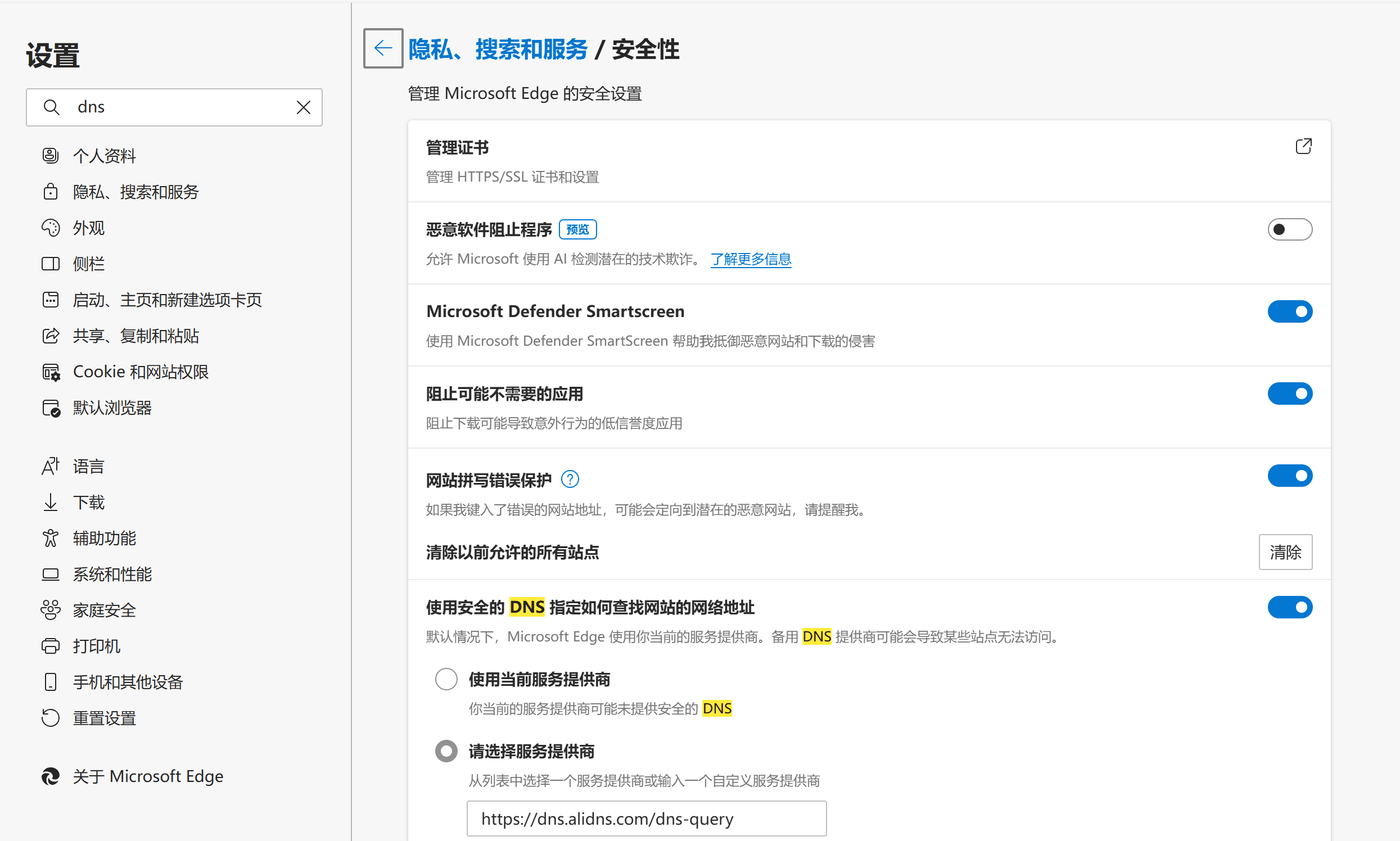
Edge browser settings
- Open Edge, enter
edge://settings/privacyin the address bar, and go to the "Privacy, search, and services" settings page. - In the "Security" section, find "Use secure DNS" and select "Choose a service provider."
- Enter one of the following addresses in the text box:
- Alibaba Cloud DoH:
https://dns.alidns.com/dns-query - Public DoH:
https://doh.pub/dns-query - Note: If you see "Server unavailable" after entering it, try these backup addresses:
https://doh.cloudflare-dns.com/dns-query(requires a proxy)https://dns.google/dns-query(requires a proxy)
- Alibaba Cloud DoH:
Chrome browser settings
- Open Chrome, enter
chrome://settings/privacyin the address bar, and go to the "Privacy and security" settings page. - Click "Security," and under "Use secure DNS" select "Choose a service provider."
- Enter the same DoH addresses as Edge and save the settings.
Option 4: Check your network environment and service status (additional advice)
- Check DoH service availability: The recommended
https://dns.alidns.com/dns-queryandhttps://doh.pub/dns-querymay occasionally fail due to network fluctuations or policy changes.- If visiting
https://dns.alidns.com/dns-queryshows "webpage resolution failed, possibly an unsupported page type," your current network may not be compatible with HTTPS-based DNS queries — switch to Option 2 (router DNS). - If
https://doh.pub/dns-queryreports "system internal error," that service node is temporarily unavailable — wait for the provider to fix it or switch to another DoH address (such as Alibaba Cloud's backuphttps://doh.aliyun.com/dns-query).
- If visiting
- Flush the local DNS cache: Open Command Prompt as administrator and run:
ipconfig /flushdnsto force-clear the local DNS cache and fix resolution errors caused by stale cache. - Check firewall/security software: Some antivirus or firewall programs may mistakenly block DNS requests — temporarily disable them or allow the browser process in their settings.
Summary
- Try Option 2 first: Changing the router DNS is the most thorough fix, resolving DNS issues for all devices on your LAN at once.
- If you need Secure DNS: If you insist on using DoH, check the provider's status regularly or choose a paid DoH service that works well domestically (such as DNSPod's DoH service).
- Long-term plan: Keep an eye on browser updates from Microsoft and Google — they may fix this through better compatibility or by adding domestic DoH providers.